Refunds and Cancelled Orders
OVER-THE-COUNTER REFUNDS[edit]
Most of the time this is a credit card transaction but in the event that it is cash, the customer will have to be given cash back or paid back by Venmo. We have done this both ways.
Credit card refund: Log into https://secure.ebizcharge.com/ gateway. At the dashboard go into BATCHES / BATCH MANAGER and at that point you will have to search for the date of the transaction under batch history. The transaction will always be a day later than the actual transaction.
Screenshots:
1. Gateway Dashboard Media:Ebiz 1.jpg
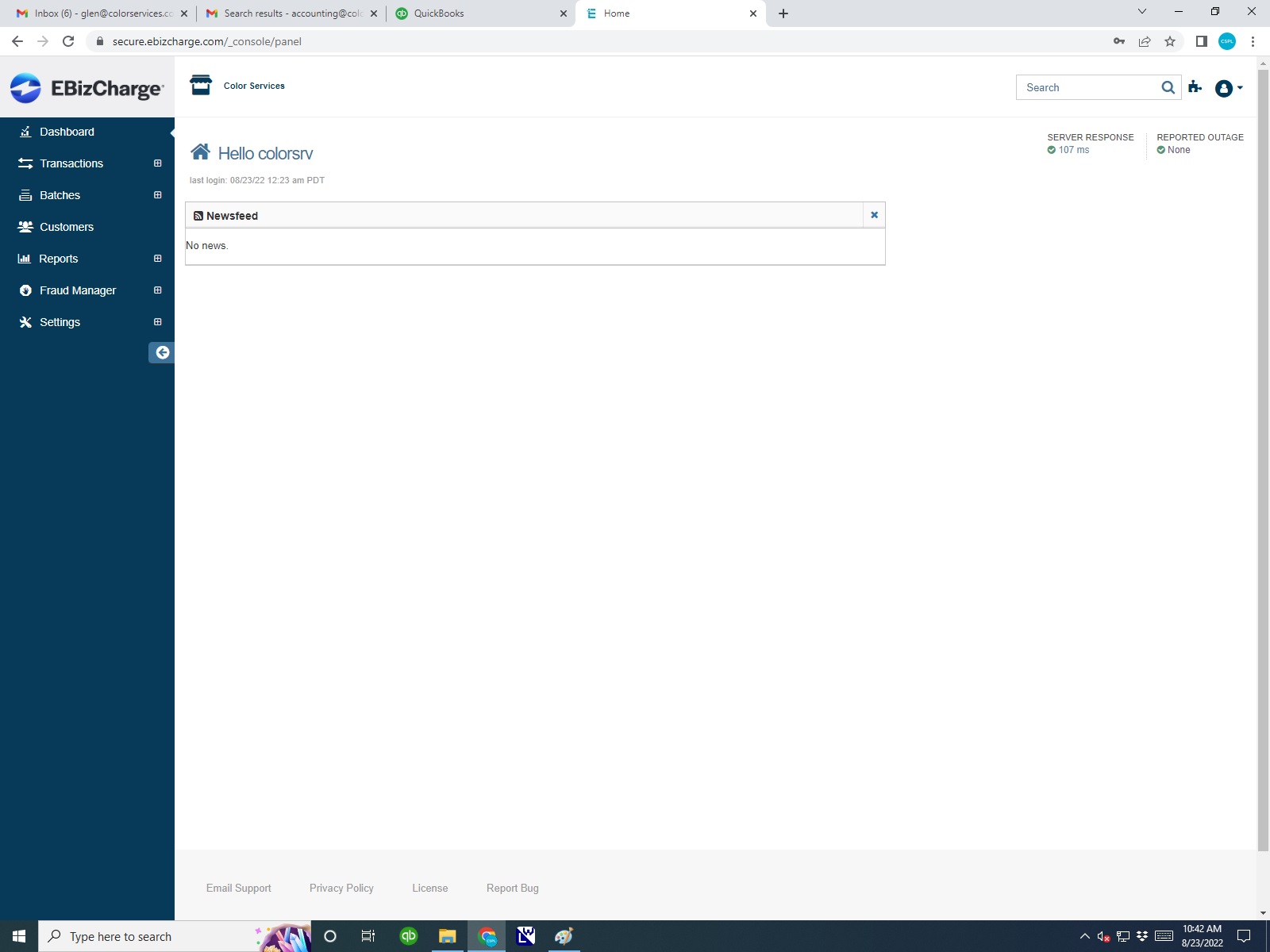
2. Dashboard after choosing Batch Manager Media:Ebiz 2.jpg
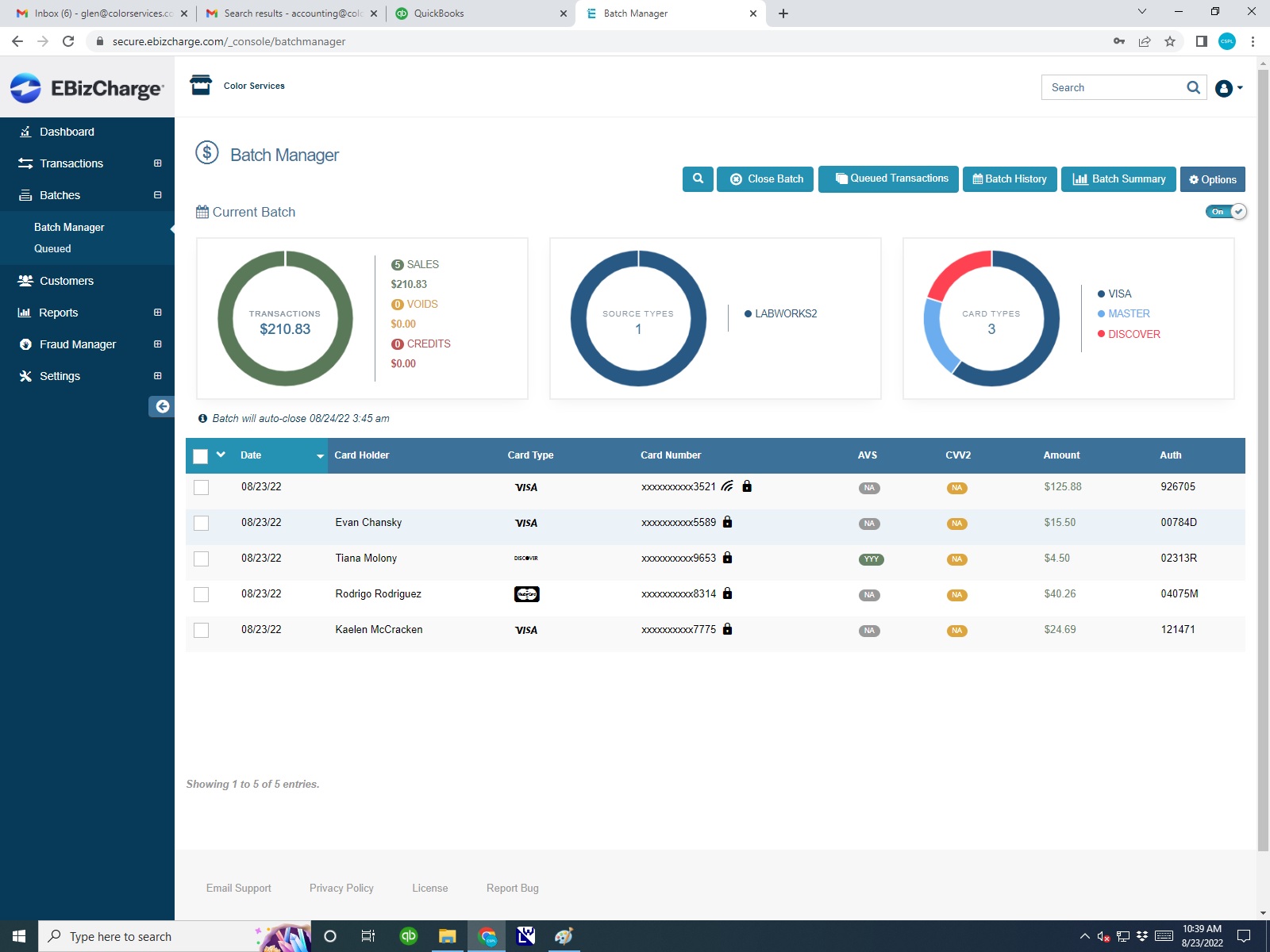
3. Dashboard after choosing Batch History Media:Ebiz 3.jpg
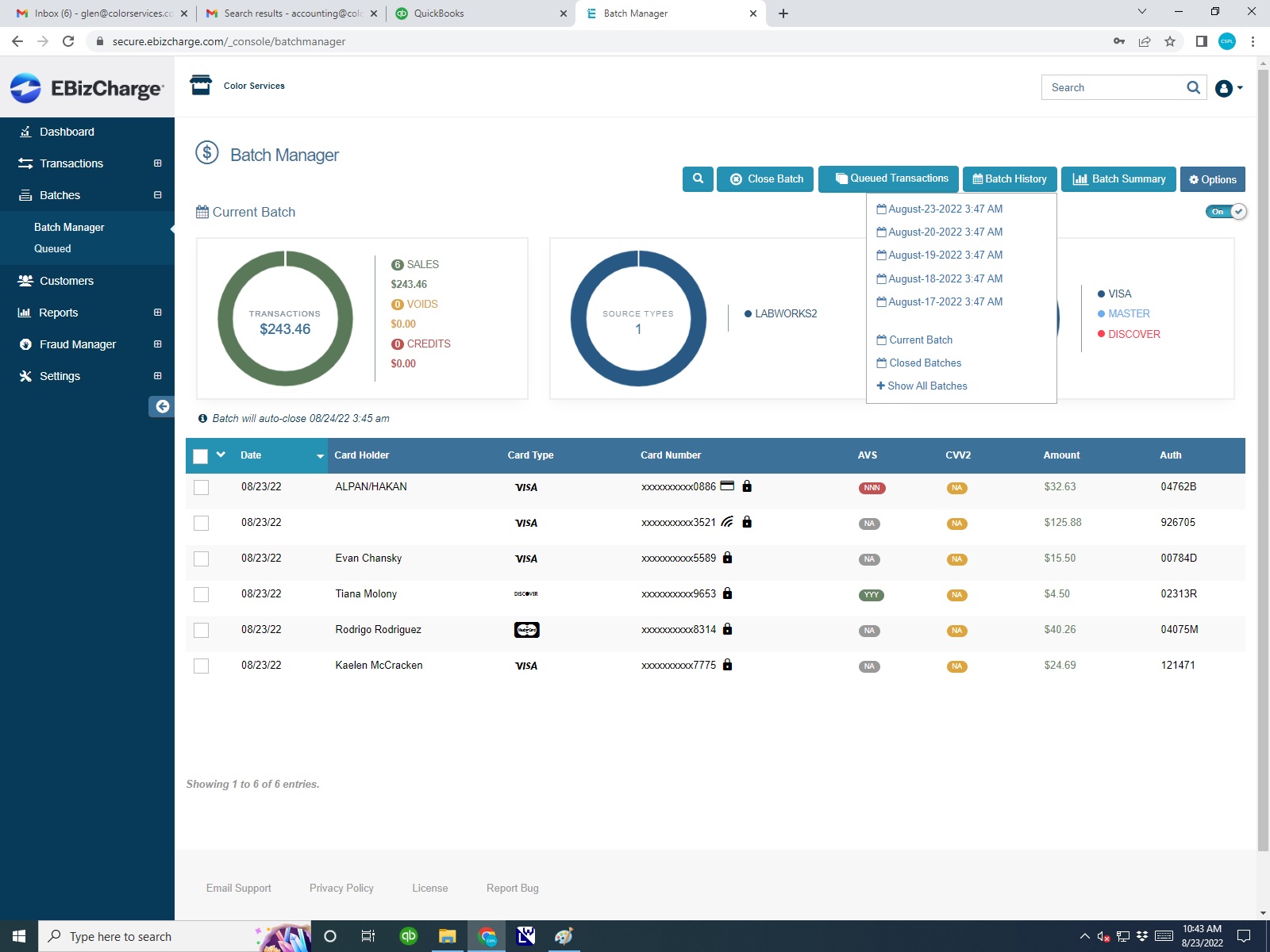
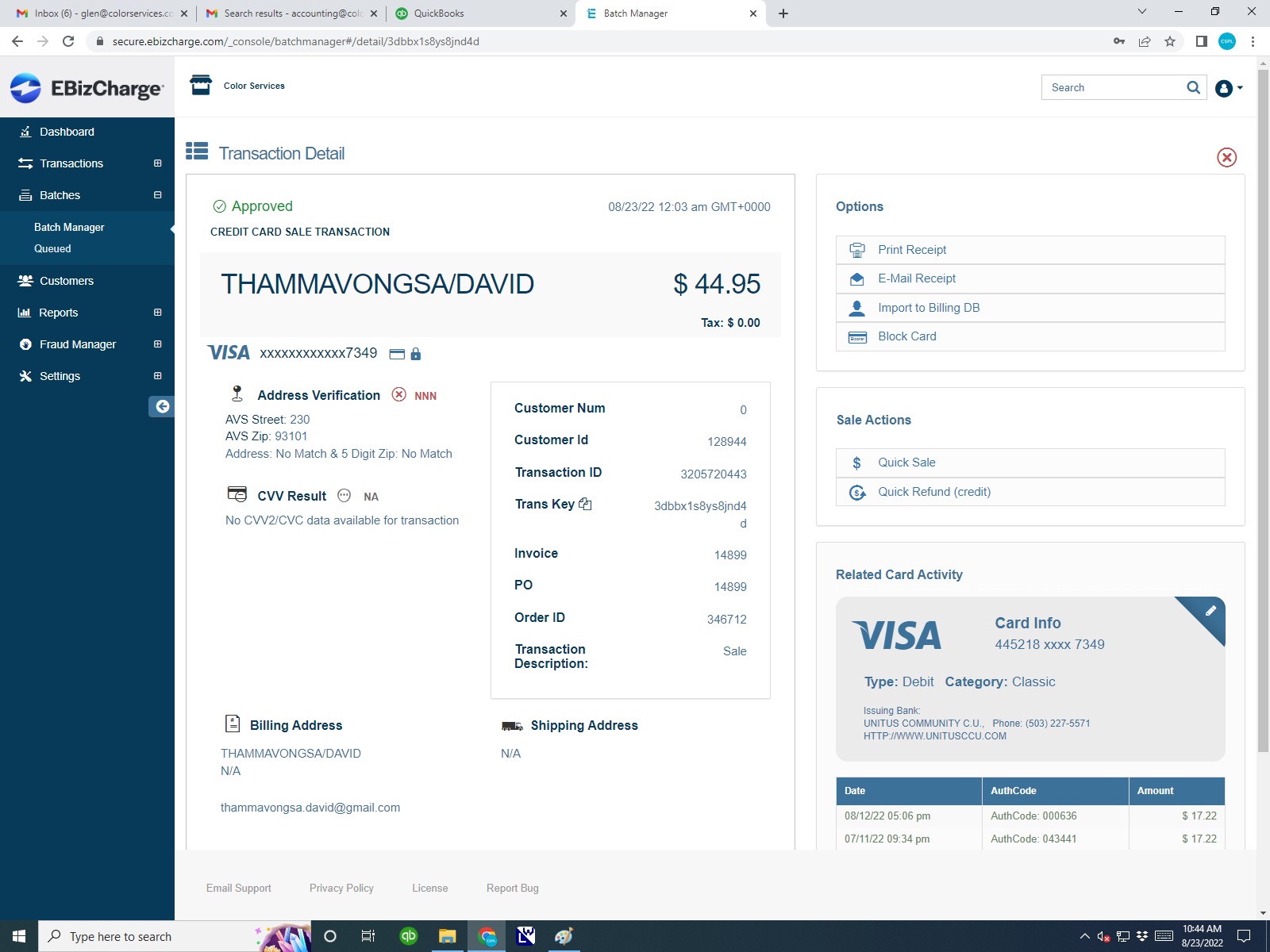
4. Dashboard after Finding Customer Transaction Media:Ebiz 4.jpg
5. Dashboard before Actual Refund Media:Ebiz 5.jpg This screenshot represents how the refund dashboard should look before doing the actual refund. The email box is checked so the customer will receive an email of the credit transaction as well as sending a copy to our customer service. To submit the credit transaction choose the green refund icon. To check to be sure everything is correct, you can check the current transactions in the queue with batch manager and it should be reflected there.
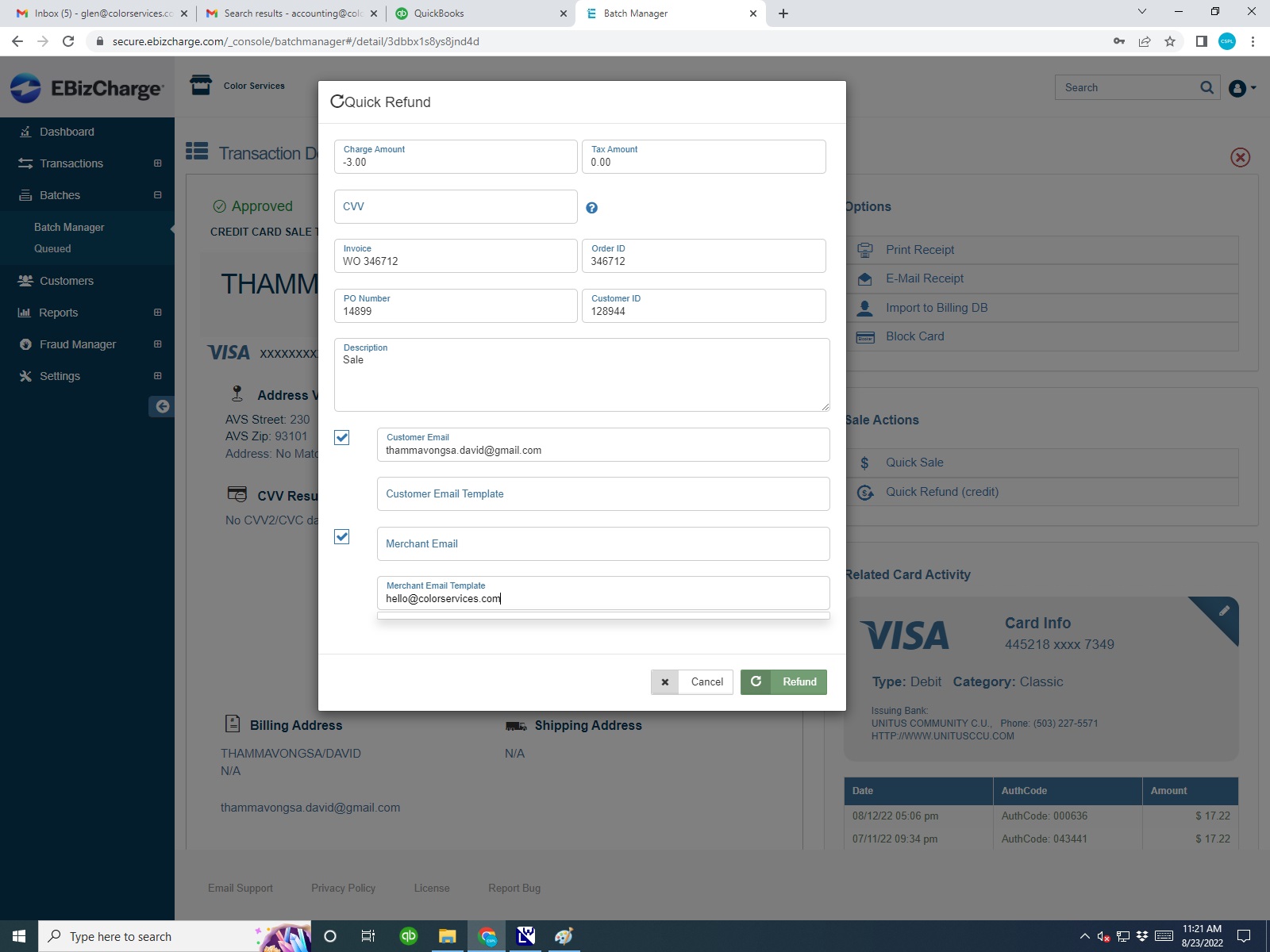
Note: all Apple Pay transactions at this point will not show the customer name. You will have to search by the amount. Once locating the transaction,choose the customer transaction and you should see #4 dashboard view. Choose a Quick Refund in the upper right corner. Enter a negative amount and check to be sure that no tax is added to the refund. Normally it doesn't add tax but sometimes it will which increases the amount of the refund.
DAKIS/WEBSITE REFUNDS[edit]
This sequence is for any refunds that come through the Dakis website. For these refunds, it helps if you have the online Order Number if not, the date of the transaction is needed. It is also important to check if it is a credit card transaction as there is also a PayPal option (see next section).
Log in: https://login.authorize.net/
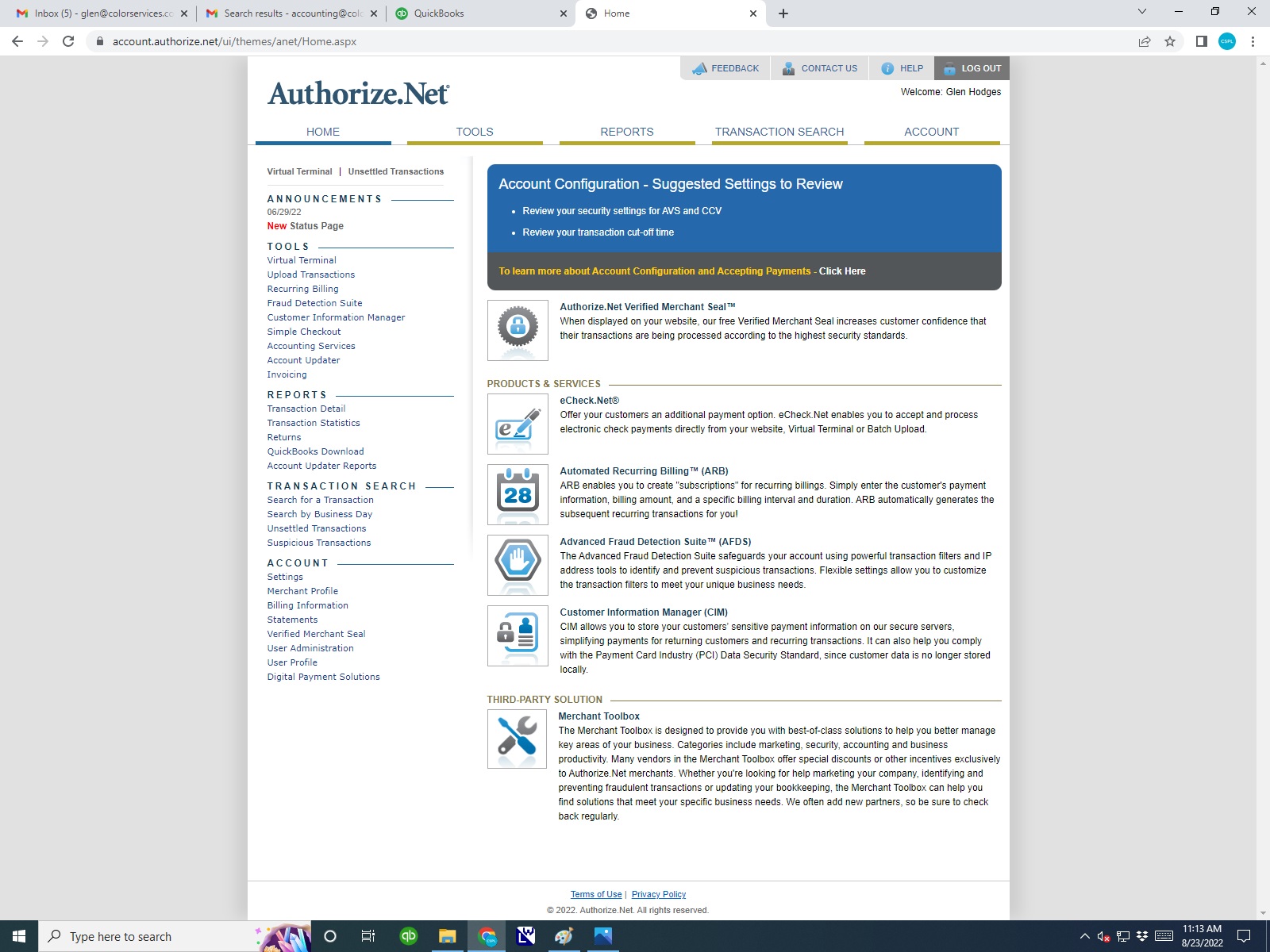
Screenshot 1 is the home screen on the gateway. Choose Reports. Media:Auth-Net_1.jpg
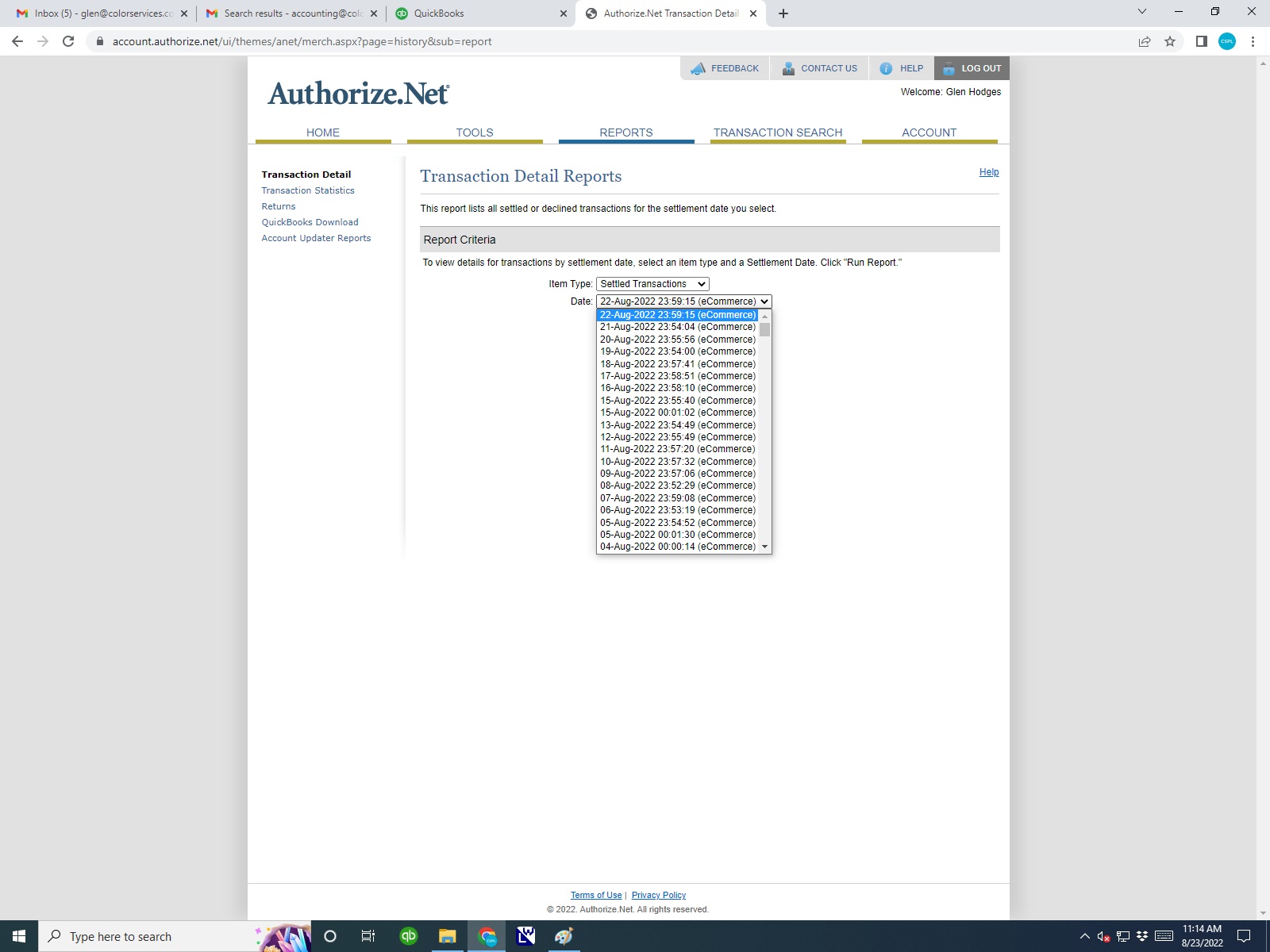
Screenshot 2 is after choosing Reports. Find the date of the transaction, Media:Auth-Net_2.jpg
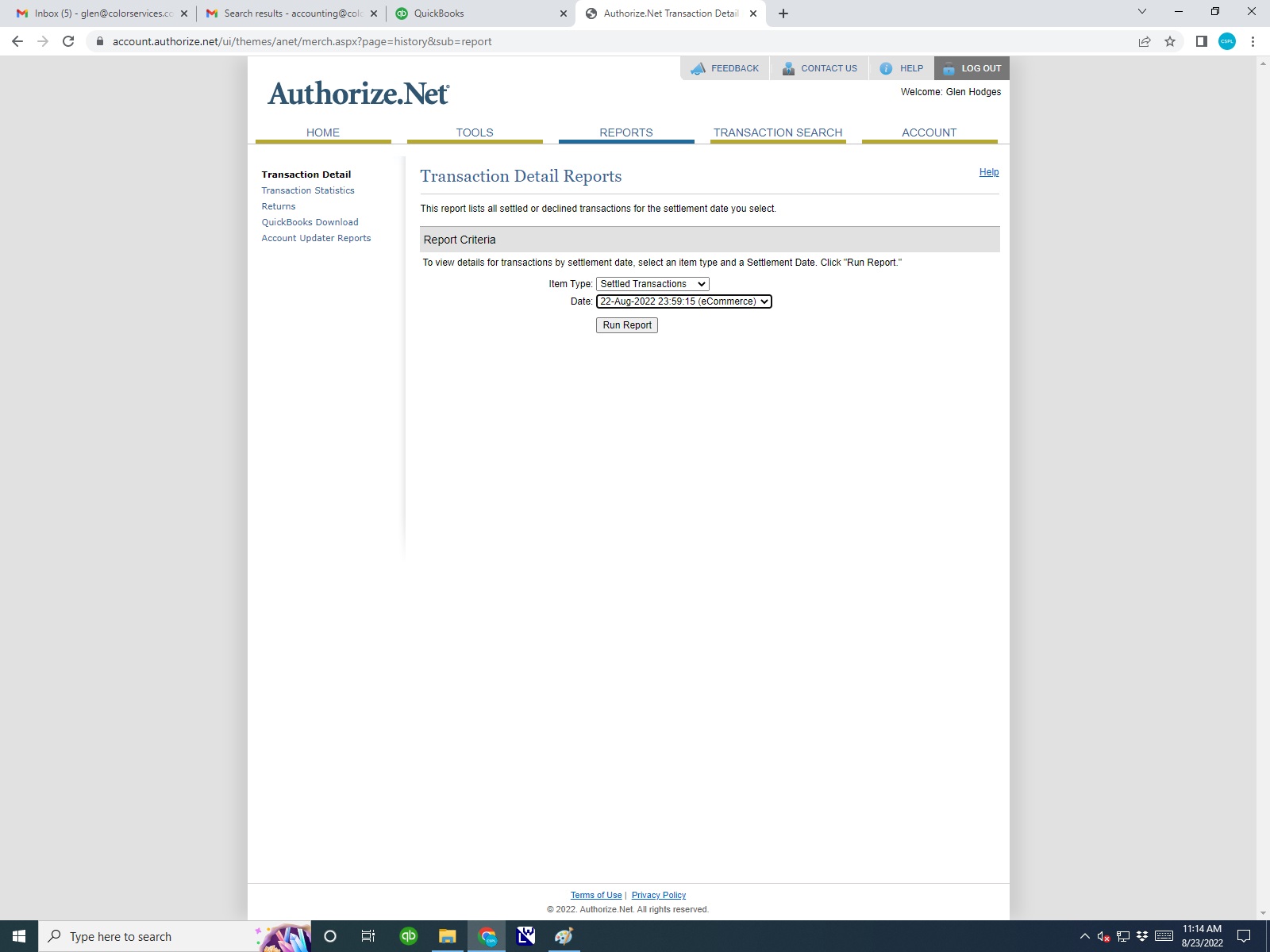
Screenshot 3. Choose the date of the transaction, Media:Auth-Net_3.jpg
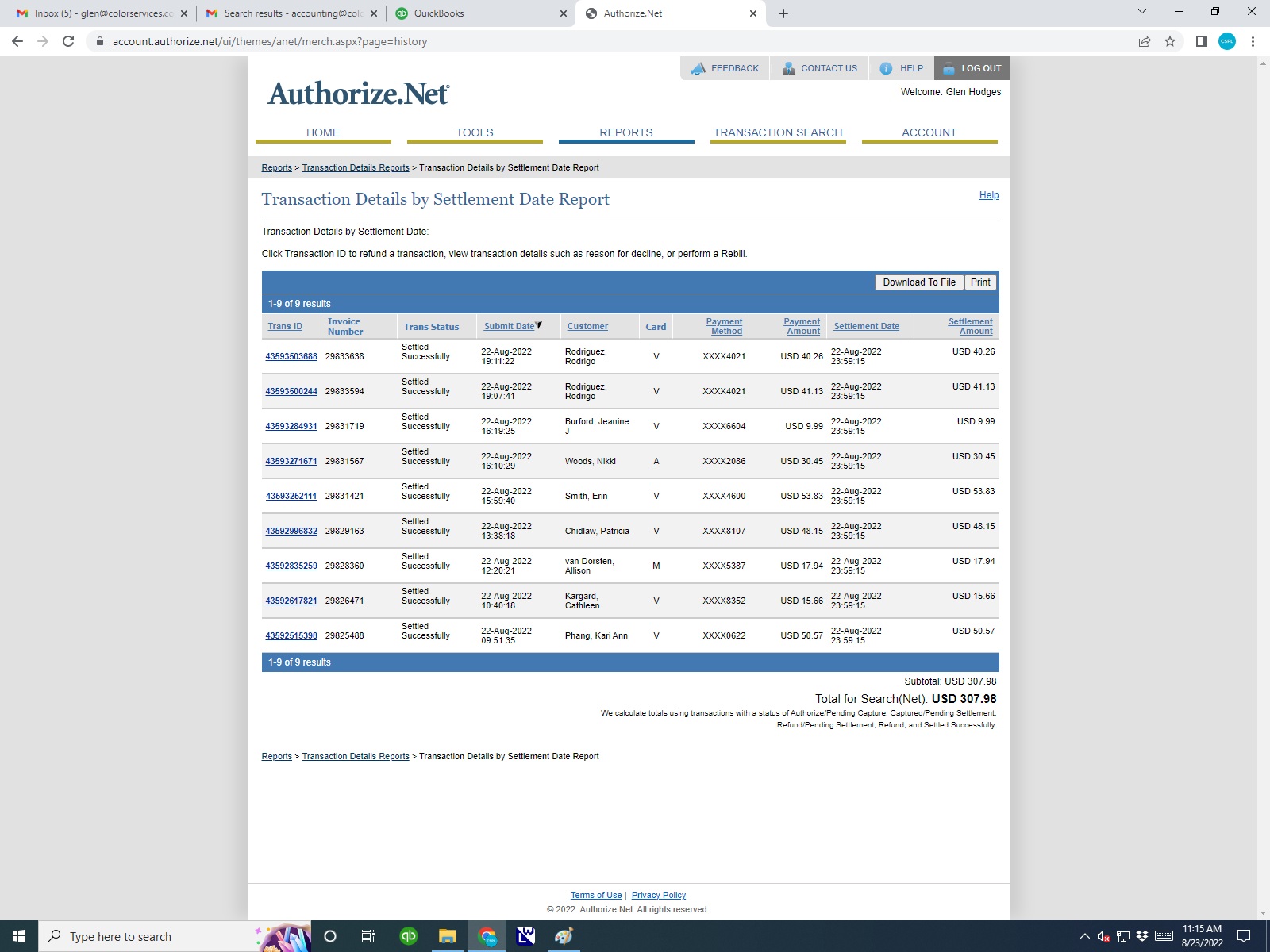
Screenshot 4. Choose the customer, Media:Auth-Net_4.jpg
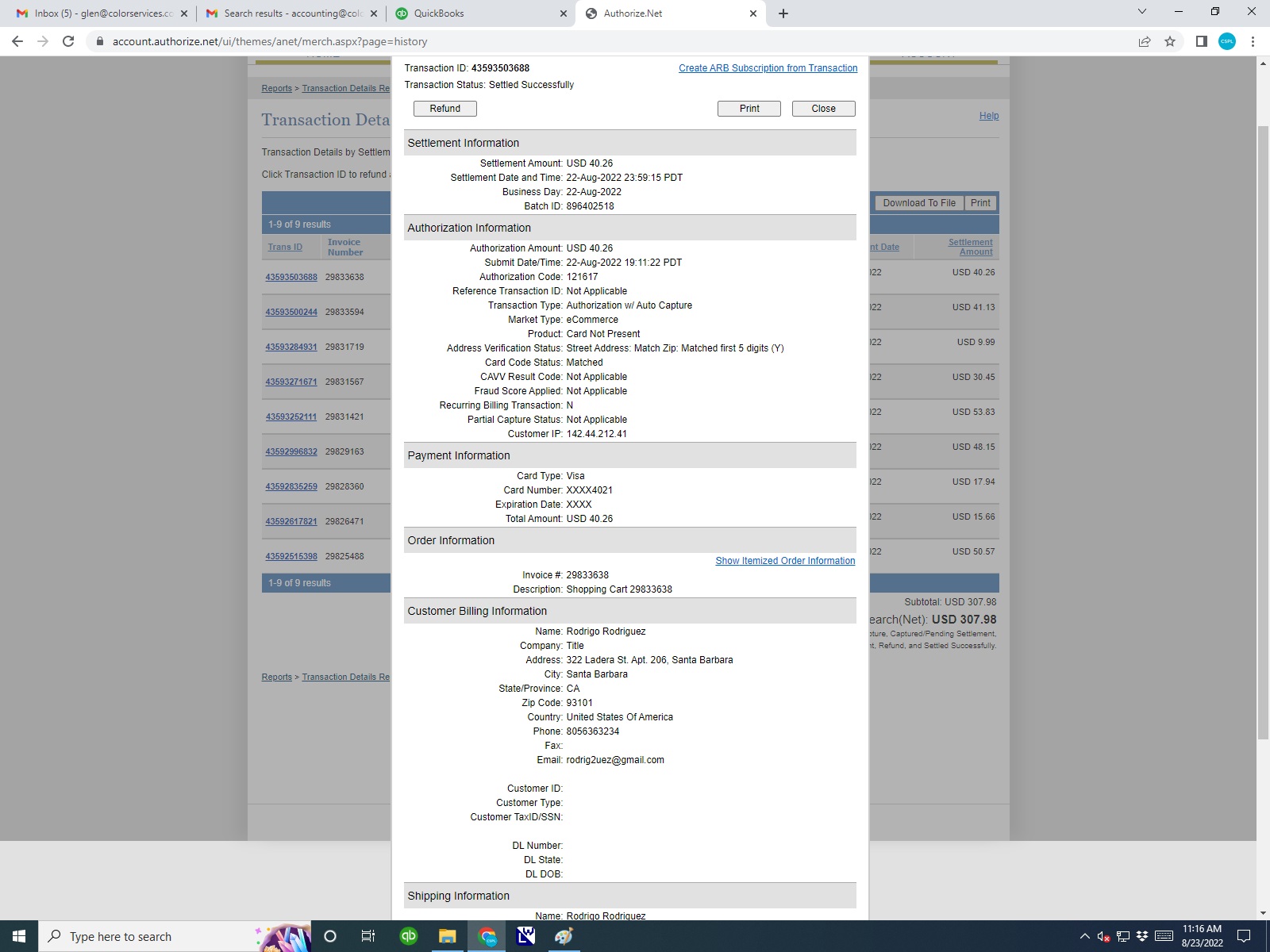
Screenshot 5 and the refund option is in the upper left corner. Media:Auth-Net_5.jpg
Screenshot 6 is after choosing the refund. Media:Auth-Net_6.jpg
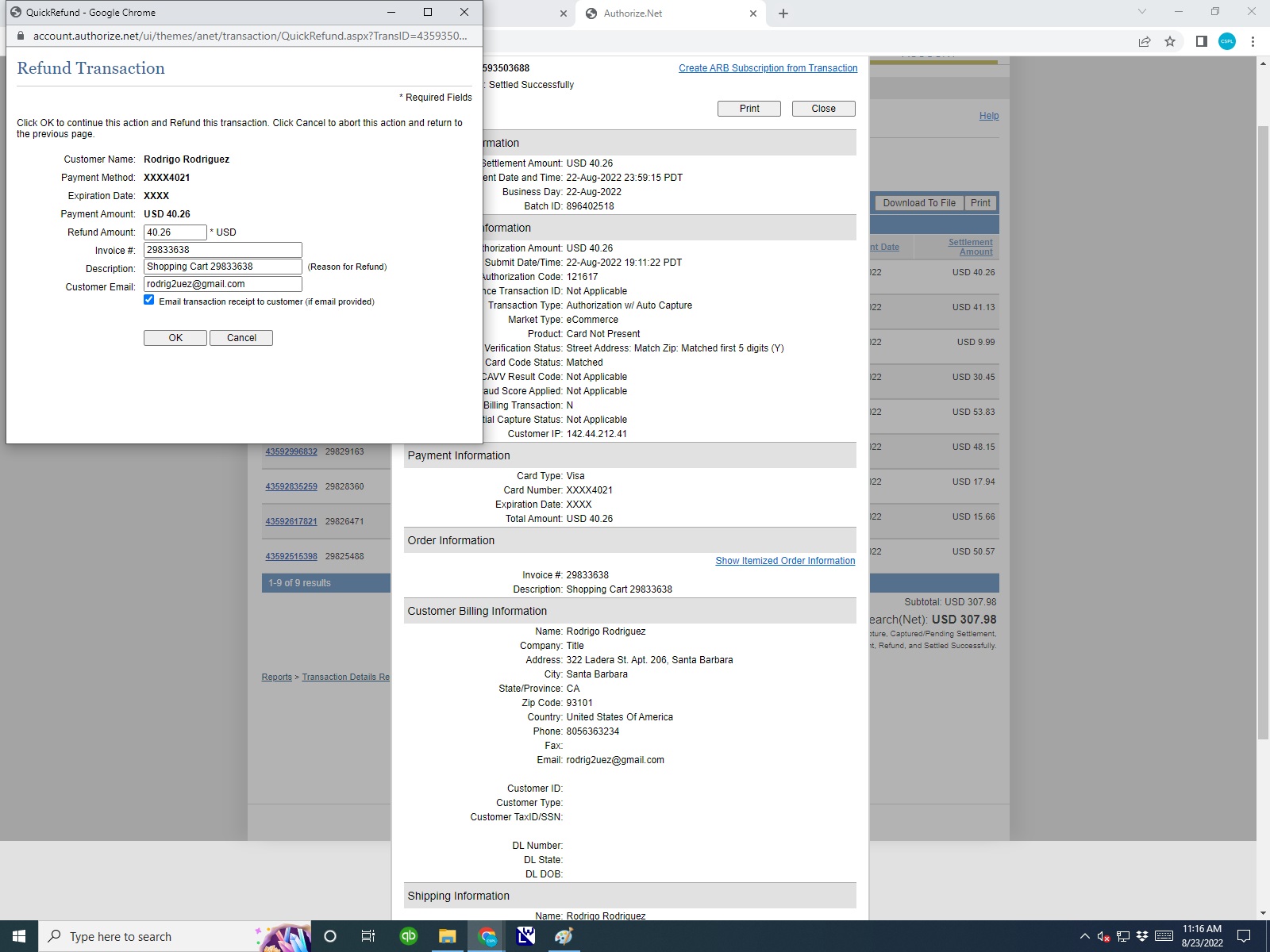
Enter the amount of the refund then put the Work Order Number or Invoice Number in the description. Be sure the box is checked for emailing the customer a copy of the refund transaction. Once the OK icon is chosen the refund will take place.
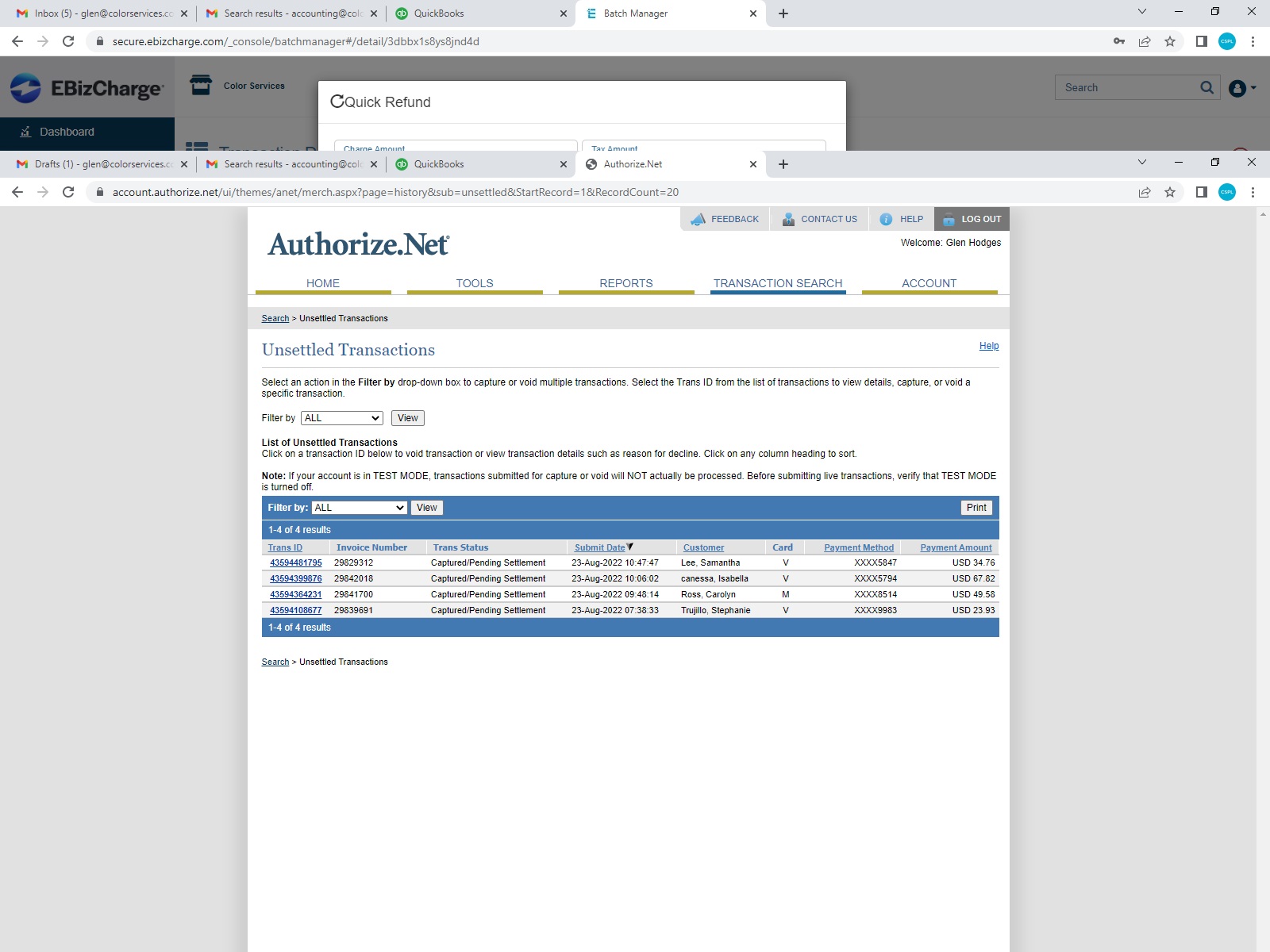
To check to be sure the refund went through, go back to the Home Page as Screenshot 1. Go into the day's unsettled transactions which are on the left side under Transaction Search. Once chosen, you should see it as in Screenshot 7. Media:Auth-Net_7.jpg
DAKIS/WEBSITE PAYPAL REFUNDS[edit]
Login: https://www.paypal.com/
Screenshot 1. Find customer / transaction that need the refund by searching in recent transactions. Media:PayPal_1.jpg

Screenshot 2. After locating and choosing the correct transaction, the menu should look like Screenshot 2. Choose the refund icon in the upper right corner. Media:PayPal_2.jpg
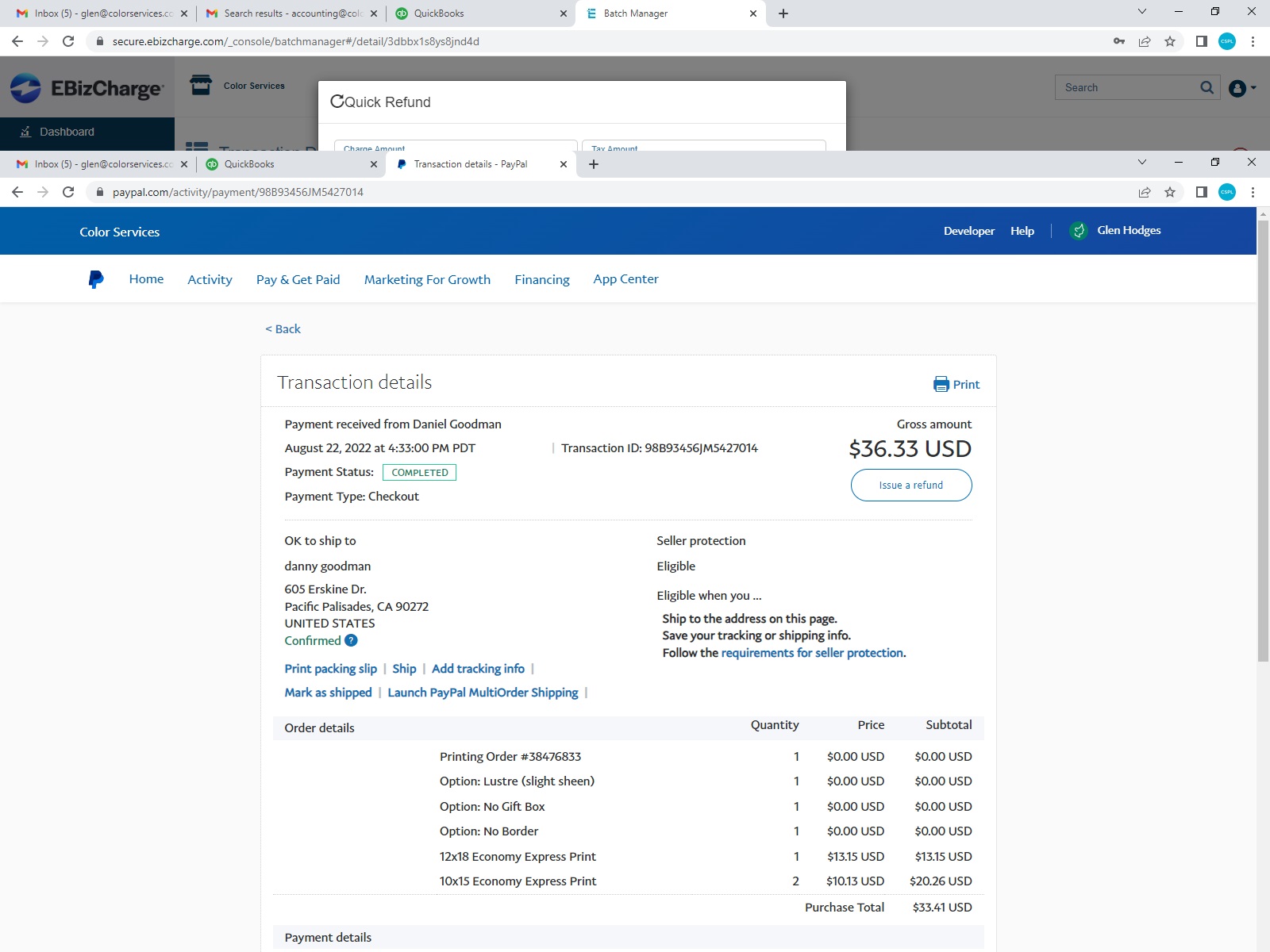
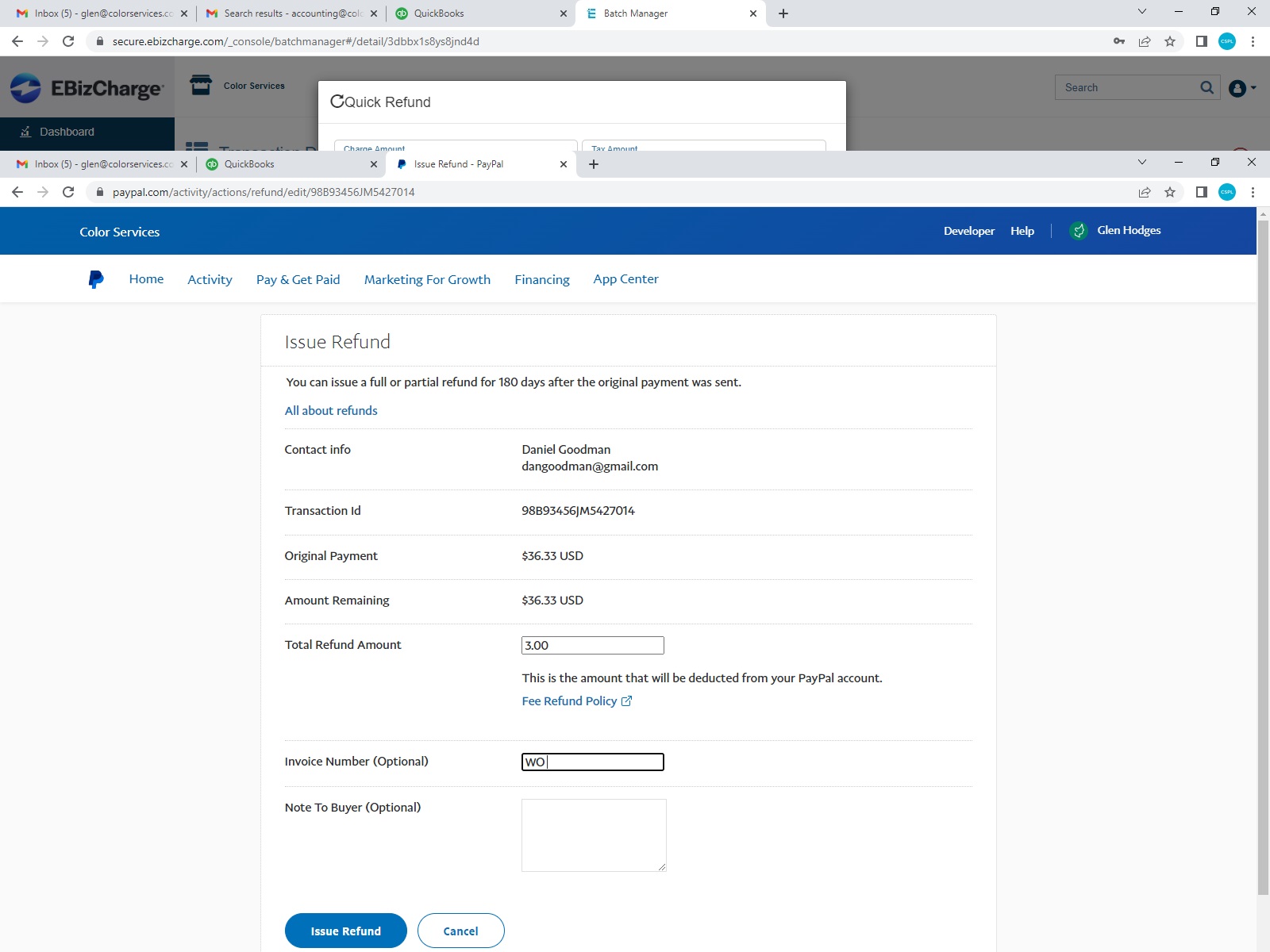
Screenshot 3. The menu will look like Screenshot 3 for issuing a refund. Enter the amount for refund and include the Work Order number as a reference and include any information that will be helpful to the customer in the area, "Note to Buyer." Once everything is completed and ready to process, click the Issue Refund button in the lower left corner. Media:PayPal_3.jpg